































Quick Order

Quick Order Guide

Getting Started with Quick Order

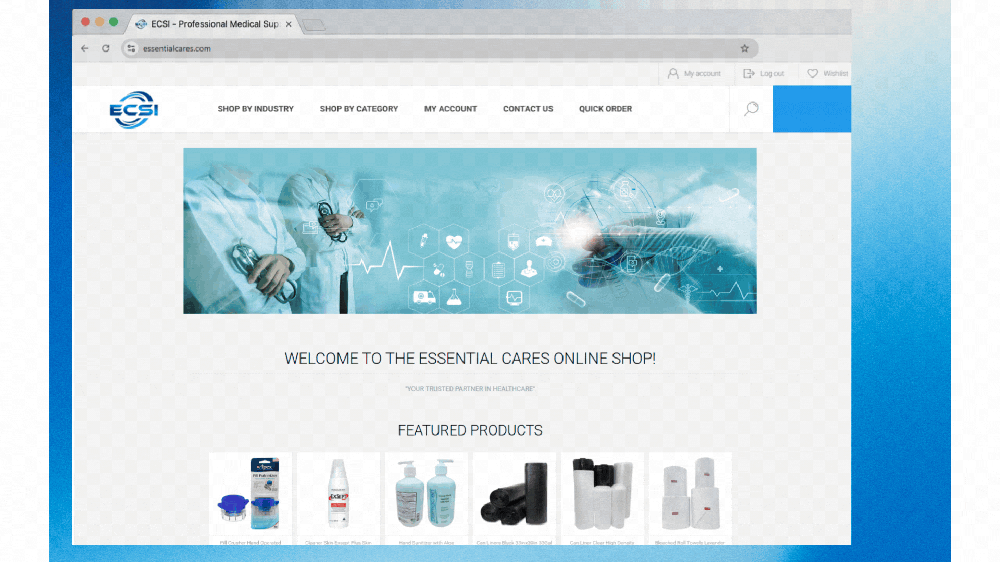
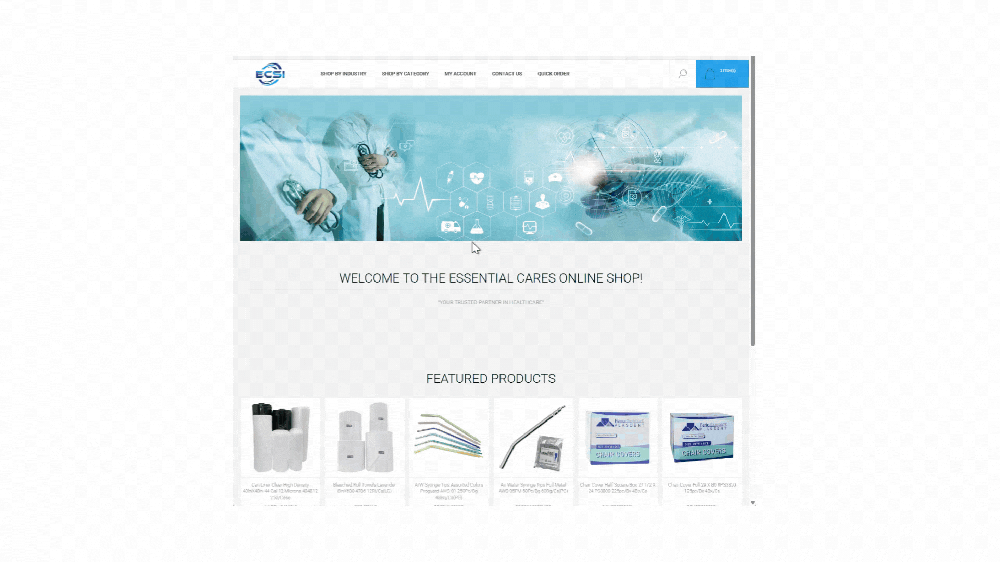
Use the ECSI ordering portal to search products, place orders, reorder routine items, and track shipments in one place.

Before you begin

  • Your account must be created by the ECSI team before you can sign in.
  • You will receive an activation email to set your password and access the portal.
  • Need access? Contact us and we will help get your account set up.

Simple Ordering in 6 Steps

Follow the steps below to activate your account, sign in, search for products, place orders, and track shipments.
1

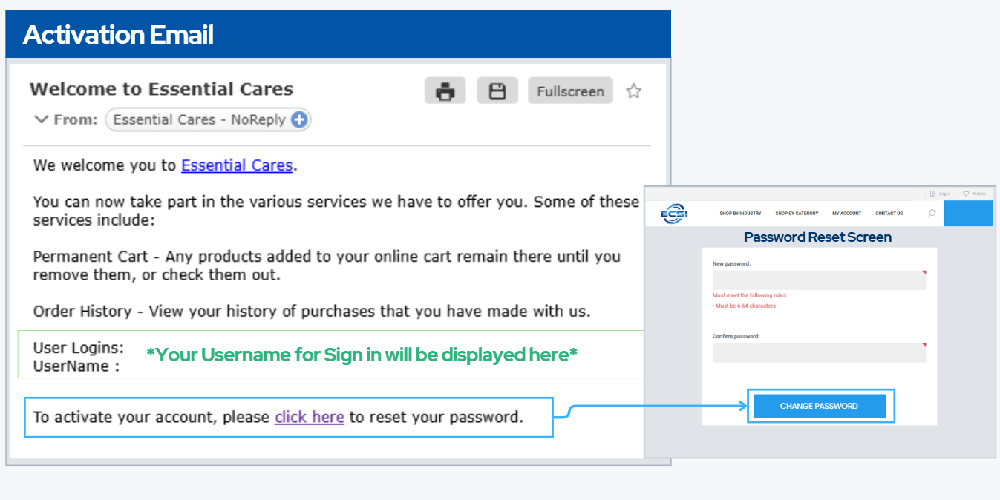
Activate Your Account

Open the welcome email from ECSI, select the activation link, and create your password.

  • Username is provided in the activation email.
  • Self-registration is not available.
  • If your link has expired, contact support for assistance.
Activation Email
2

Sign In

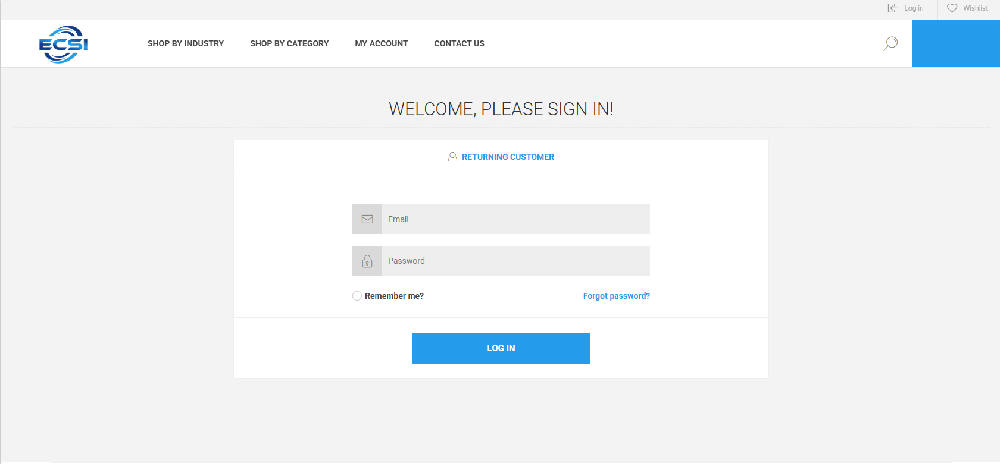
Sign in with your username and password to access your dashboard and ordering tools.

  • Use the portal login page.
  • Saved credentials can speed up routine ordering.
  • Contact ECSI if you need password reset help.
Sign In Screen
3

Find Products

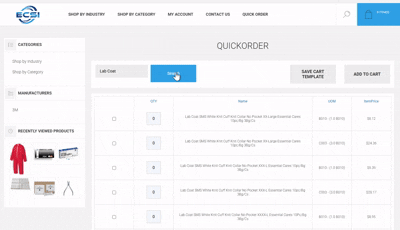
Search by SKU, product name, or browse by category to find the items you need.

  • Use search for fast lookup.
  • Browse categories for broader shopping.
  • Review product details before adding items to cart.
Product Search Screen
4

Add Items to Cart

Select quantity, confirm the unit of measure, and add products to your shopping cart.

  • Check item quantity before moving on.
  • Review UOM and packaging carefully.
  • Save items in cart for later if needed.
Add to Cart Screen
5

Review and Check Out

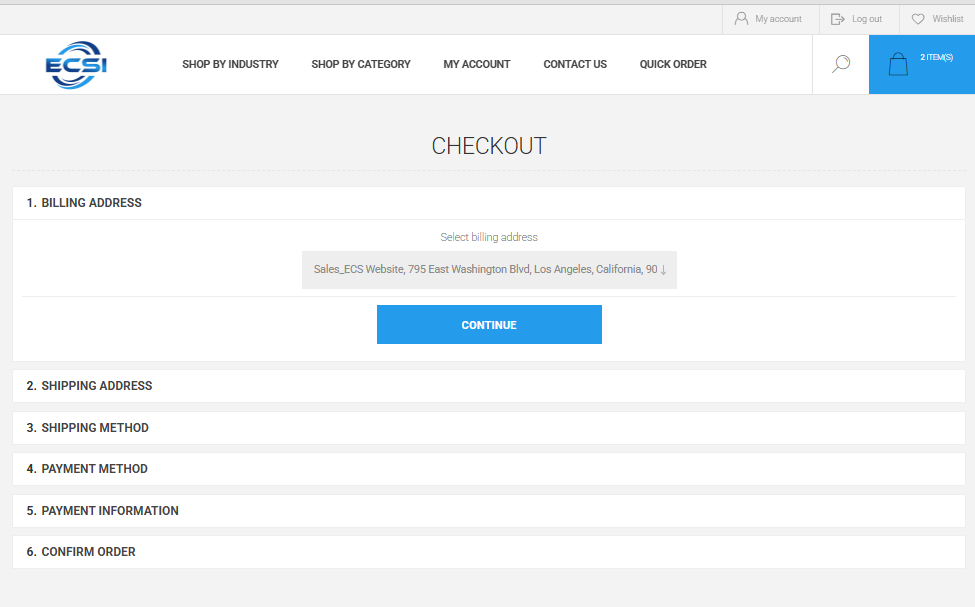
Verify products, quantities, and pricing, then proceed through checkout to submit your order.

  • Confirm billing and shipping information.
  • Select shipping and payment method.
  • Submit the order when everything looks correct.
Checkout Screen
6

Track Orders and Reorder

After checkout, use your account dashboard to view open orders, shipments, confirmations, and reorder routine items.

  • Open Orders shows active warehouse processing.
  • Shipments displays tracking details.
  • Use past orders to reorder faster.
Track Orders Screen

Helpful Notes

Account-Based Pricing

Portal pricing reflects your account terms. Guide screenshots may show sample pricing for illustration only.

Saved Addresses

Billing is tied to your account. Ship-to details can be selected from saved addresses or entered as needed.

Shipping Visibility

Final freight details and order confirmations are provided through the portal and follow-up order communications.

Need Help?

If you need portal access, password assistance, or help placing an order, contact the ECSI team.

Portal screens may vary slightly by account configuration, device, or future system updates.

Leave your comment
*
Only registered users can leave comments.